

-
Our deepest thanks to the many GTD enthusiasts who have posted in and read this forum over the years. Because use has been steadily declining in recent years, we have reluctantly decided to make this forum a read-only reference archive. There is an active GTD discussion community on the new GTD Connect. Copy/paste this link to get a free trial: https://bit.ly/4hYicYV We still offer a range of other free resources for GTD enthusiasts at: https://gettingthingsdone.com/resources/
You are using an out of date browser. It may not display this or other websites correctly.
You should upgrade or use an alternative browser.
You should upgrade or use an alternative browser.
Managing next actions and projects in Apple reminders
- Thread starter damianp
- Start date

When I read this article, I did not think it was simple:
As you can see, connecting next actions to projects inside Reminders can be cumbersome because we have to set up a tree-like structure where next steps are nested under projects using drag-and-drop. When you have an Inbox list (which we will talk about later), you have to drag the reminder to the corresponding list inside “Planning,” then click on the list again in the sidebar, find the reminder, and drag it under its project. The last step can be done using keyboard shortcuts, but it is far from being as intuitive as assigning projects to next actions in OmniFocus or Things; people accustomed to these apps can feel like this step is a chore in Reminders which results in more time spent on system administration than necessary.

jsloat
Registered
I agree, I read the article and did enjoy the in-depth explanation, but I think I would prefer the method of a previous poster of using tags for context & separate lists for projects.When I read this article, I did not think it was simple:

tmlr
Registered
> Don't use contexts as lists; use them as tags.
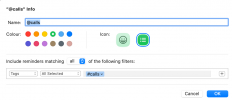
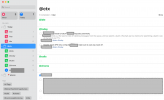
I'll do you one better. Use tags for contexts, create lists for Projects and then use Smart Lists to get your context lists.
The screenshots look kinda empty because I'm in the process migrating from Obsidian. Don't get me wrong, I love Obsidian, but ingestion and quick checks on mobile are too hard, so I'm trying to simplify with Apple Reminders.
I'll do you one better. Use tags for contexts, create lists for Projects and then use Smart Lists to get your context lists.
The screenshots look kinda empty because I'm in the process migrating from Obsidian. Don't get me wrong, I love Obsidian, but ingestion and quick checks on mobile are too hard, so I'm trying to simplify with Apple Reminders.
Attachments
jsloat
Registered
Nice, what is your list setup? I only see Inbox and whatever is inside the places folder> Don't use contexts as lists; use them as tags.
I'll do you one better. Use tags for contexts, create lists for Projects and then use Smart Lists to get your context lists.
The screenshots look kinda empty because I'm in the process migrating from Obsidian. Don't get me wrong, I love Obsidian, but ingestion and quick checks on mobile are too hard, so I'm trying to simplify with Apple Reminders.
tmlr
Registered
My lists are split into 3 groups:Nice, what is your list setup? I only see Inbox and whatever is inside the places folder
- Contexts
- People
- Places
- @chores (I'm in the mood to get into zone and do lots of small tasks)
- @coding (do some programming that I wanted)
- @diy (feel like working with tools in the shed)
- @evening (some calm small bits and pieces, may be reading)
- @tinker (I'm in to mood to learn something new or may be improve something in my setup, tinker with computer stuff)
- @idle (waiting for computer to finish operation or just having a break? Procrastinate efficiently, funny videos, TikTok or small articles go there)
- @today - it automatically collects tasks from daily notes. My daily notes are my inbox. But also some times I feel like outlining the day, so all times will automatically go there.
- @next actions - collects all contexts in Obsidian, grouped by context but in Reminders it'll be just a group
- @agendas - same as next actions but for people
- @errands - same as next actions but for places
I have list for areas but I'm not quite figured them out yet so it is not worth posting, won't be a good example.
When you have a Mac, using apple Apps is often better. It is an holistic system, so it's easy to use for example you can use reminder, apple note both of them, make link, use tags linking inside orouside the app. Using reminder is interesting if you like having the the task inside your calendar at the right day and it is elegant, efficient and smart.
However I dislike this system. I tried ;-). From my point of view it is Ok if you have a very light system with only a few projects or a few tasks. But when things becomes serious I felt more comfortable using Omnifocus, things or even todoist (paid version). Paper or a good note book is better, Bujo approach is better too if use with apple note as reference material for example or any good note app.
I feel much better with Omnifocus it is easy, fast efficient. Every next action can be link to the project itself.
But us is just a personal point of view. Any one can use anything for GTD. Having a digital solution just helps when you have an iPhone and use it every time and everywhere.
However I dislike this system. I tried ;-). From my point of view it is Ok if you have a very light system with only a few projects or a few tasks. But when things becomes serious I felt more comfortable using Omnifocus, things or even todoist (paid version). Paper or a good note book is better, Bujo approach is better too if use with apple note as reference material for example or any good note app.
I feel much better with Omnifocus it is easy, fast efficient. Every next action can be link to the project itself.
But us is just a personal point of view. Any one can use anything for GTD. Having a digital solution just helps when you have an iPhone and use it every time and everywhere.
You can link the two pretty easily if you keep one simple rule. Put every project in its own list, then add one reminder inside each list tagged as your next action. Your context lists stay clean because you only drag the next action into them, not the whole project. When you finish that task, open the project list, pick the next step and tag it. It keeps things moving without turning Reminders into a maze.Hi, I'm curious about how people are managing the interaction between projects and next actions in the Apple Reminders app.
I have a list of projects broken down by my areas of focus and separate next action lists by context (home, garden, internet etc.). Does anyone have tactics about how they manage the interaction between the two?
Many thanks in advance,
Damian

MichaelB215
Registered
This is a great tool.I don't use it for GTD purposes as its still not quite suited to GTD imo. But for people that use Reminders, Remind Me Faster is a great little app that makes it easier to get things into your system.
https://apps.apple.com/us/app/remind-me-faster/id985555908?platform=iphone
You can also replace the Camera or Flashlight widget on the iPhone lock screen with the iOS
26 native New Reminder widget (the same one as in the Control Panel).
Curiously, this only works for those two “permanent” buttons on the lower left and right of the lock screen - not in the customizable widgets above. But with the introduction of the physical camera button on the side of iPhone 17 I didn’t mind losing the on screen one.
Attachments


Popeye
0
Very cool to see your setup, Robert! Thanks for sharing.
Echoing what some have suggested, using tags is also what Morten does in his setup. I have personally taken the transition from Todoist to Reminders as an opportunity to simplify my system, so I am back to the plain separate lists. If you're curious to hear more about how we (Morten and I) approach our differing setups in Apple Reminders, here's our episode on that:
We are moving into 2026 now and I wonder…
Do you guys still using Apple Reminders today or do Todoist and Omnifocus won you back from this ”flirt” ??

TesTeq
0
@MichaelB215 Thank you! I didn't know it. I don't need the Camera button when I can achieve the same by swiping left!You can also replace the Camera or Flashlight widget on the iPhone lock screen

schmeggahead
Registered
The swipe left gesture can now be disabled in settings (having a dedicated button makes it unnecessary for me.@MichaelB215 Thank you! I didn't know it. I don't need the Camera button when I can achieve the same by swiping left!
TesTeq
0
@schmeggahead Unfortunatelly I'm stuck with iPhone 13 mini without a dedicated button. Tim Cook is unable to create a small iPhone – though he managed to create a falsely thin one (Air). By "falsely" I mean that they advertise the "thinness" without the camera bump, but the camera bump is here…The swipe left gesture can now be disabled in settings (having a dedicated button makes it unnecessary for me.
Personally, I still use Apple Reminders as my primary GTD system. What works for me is its simplicity and clean interface—it keeps the friction low, which is essential for staying consistent.We are moving into 2026 now and I wonder…
Do you guys still using Apple Reminders today or do Todoist and Omnifocus won you back from this ”flirt” ??
I try to be very careful not to spend more time managing the system than actually doing the work. To help with this, I use about 6 or 7 Shortcuts for automation. They handle the "heavy lifting" so I can focus on execution.
I’ve already shared my email integration shortcut previously, but I thought this one might interest you: it’s designed to automatically pre-tag Next Actions based on action verbs or keywords. It also parses dates, whether they are specific or written in natural language.
Hope this helps someone looking to streamline their Reminders setup!
Last edited:

David Parker
GTD Connect
If you include in the Notes field of a Reminder a # followed by the Project name without spaces (for example #FixLockOnGarage or #Fix-lock-on-garage) this is recognised as Tag. Then you can create a Smart List of all matching Tags to track a Project. You can apply other Tags to the same Reminder for a Context if you wish. Again a Smart List can be used for each Context. I successfully replaced OmniFocus with Reminders but my system is quite simple as I'm retired (but still busy!)Hi, I'm curious about how people are managing the interaction between projects and next actions in the Apple Reminders app.
I have a list of projects broken down by my areas of focus and separate next action lists by context (home, garden, internet etc.). Does anyone have tactics about how they manage the interaction between the two?
Many thanks in advance,
Damian
Last edited:
In pure GTD this is not a thing. Next actions can happily have no relationship to the project list nor support or reference materials. Writing clear next actions goes a long way to mediate the need to have such a close connection between projects and their next actions.The main reason I have never changed from Things to Reminders is this: In Reminders, when you’re looking at an item in Today or a smart list (for example), you can’t just go to the item’s project in order to see it in context. That’s the obstacle for me.
And there are a number of ways, should you care to, to easily connect reminders to a project list or project support / reference materials.
My biggest issue with reminders and almost all task managers is how poorly they think thru UI. It's simply too easy to enter into an edit mode on a touch device. If every app just followed the genius of Drafts and provided a read / interact mode, with a single toggle, so many more apps would be more viable for me.
I would say “vanilla” rather than “pure”. There’s nothing wrong with implementing a workable paper system digitally, but you lose a lot of the potential value that a good app has. I happen to think that the newer features of Reminders are a mixed bag at best. The upside of using them is small for me so I use something that works better for me.In pure GTD this is not a thing. Next actions can happily have no relationship to the project list nor support or reference materials. Writing clear next actions goes a long way to mediate the need to have such a close connection between projects and their next actions.
And there are a number of ways, should you care to, to easily connect reminders to a project list or project support / reference materials.
Personal preference again. I am fine with the easy editing in Reminders. I don’t use Drafts because for me it adds an extra, unneeded inbox in my workflow.My biggest issue with reminders and almost all task managers is how poorly they think thru UI. It's simply too easy to enter into an edit mode on a touch device. If every app just followed the genius of Drafts and provided a read / interact mode, with a single toggle, so many more apps would be more viable for me.
None of this is meant as criticism. What works well for one person may not work for another. I’m much, much better with a digital system than paper, for example.